Windows Wants a BitLocker Recovery Key. Where Do You Find It?
 Tech Tips
You turn on your Windows computer and get a blue recovery screen before you reach your usual sign-in. It asks for a BitLocker recovery key, and your PIN or password doesn’t work there. Before anyone suggests resetting the computer, pause and note what the screen says. The recovery key may already be stored under the account that set up the computer or with the organization that manages it.
For a Connecticut Shoreline home office, this can be the difference between getting back to the day’s work and making a rushed decision about a PC that holds local files. For a business, knowing who can retrieve a key is part of knowing who can get a workstation back in service.
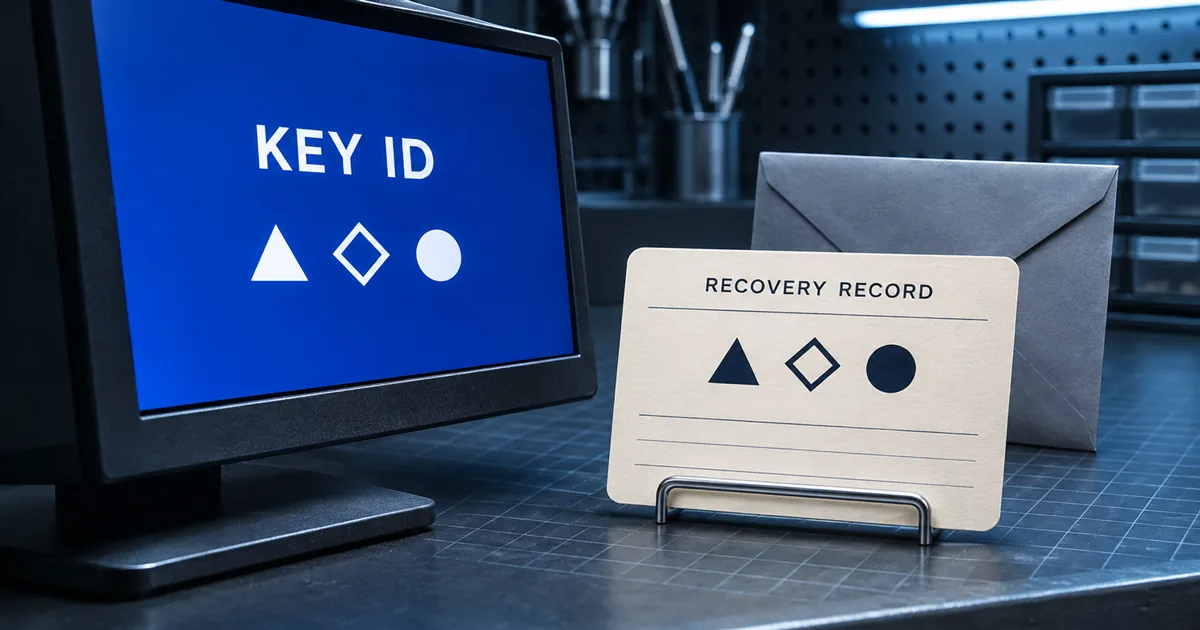
Start with the key ID on the screen
BitLocker encrypts a Windows drive. If Windows can’t unlock it automatically, the recovery screen asks for a 48-digit recovery key. A change to the hardware or a security-related change can trigger the request. The prompt by itself gives you no diagnosis of what caused it.
Find the recovery key ID shown on the screen. Microsoft recommends noting its first eight characters so you can identify the corresponding entry. The ID is a reference for choosing the right record. The longer recovery key in that record is what you enter on the locked PC.
This distinction matters if your account lists several devices or more than one key for a device. Match the ID before entering anything. If you have a personal laptop and a work computer with similar names, use the ID rather than relying on the device name alone.
Check the account or records that belong to this PC
For a personal computer, use another trusted device and follow Microsoft’s official instructions for finding recovery keys in a Microsoft account. Sign in with the account used to set up or manage the locked computer. If a family member originally set up the PC or enabled encryption, ask them to check their account. Some newer Windows recovery screens can show a hint about the account where the key was saved.
For a work or school computer, contact the organization’s IT provider or help desk through the number or channel you already use. The key may be available through the work or school account, depending on how the machine was set up. Give the help desk the key ID and the device name or asset tag if you know it. Let them verify your identity and follow their recovery procedure, especially if the PC contains client or employee information.
Also check any secure place where you might have saved a printed recovery record or a USB drive containing a saved key file. A USB file containing the key can be opened on another trusted device if the locked PC is unavailable. Once you find the matching record, enter the recovery key directly into the Windows prompt. Treat that long number like a sensitive credential. Keep it out of routine email, public support forums and shared chat messages.
If the first search comes up empty
Think back to who set up the computer and whether it was previously managed by a business or school. If the account shows a key for the same computer name but the ID is different, keep looking. A mismatch is a reason to verify the record, particularly if the computer has changed hands or been through service.
If the prompt appeared right after a repair or hardware change, tell the technician what changed and when you first saw the screen. For a work PC, let IT assess whether the recent change can be safely reversed. Before making more changes, identify which important files exist only on that machine and which have a verified backup. That inventory helps you weigh the next step.
Microsoft says its support team cannot recreate a lost key. If the key is unavailable and the change that prompted recovery can’t be undone, resetting the device removes its files. Before approving a reset, check that you can open the copies you’ll need from another device. Include anything you keep locally, such as a working spreadsheet, downloaded statements or a project that hasn’t finished syncing.
Before the next service visit
While the PC is working, check who manages it, where its recovery record is kept and who can retrieve it. A home office might keep that information with its service records while storing the actual key securely. A small business can record who handles recovery requests and confirm that a second authorized contact knows how to reach that person.
If you’re on the Connecticut Shoreline and a recovery prompt appears after service or at startup, Lyme PC Repair can help identify the right place to look and discuss your options before you authorize a reset. Lyme PC Repair
Source
Need a hand with this? We help homes and small businesses along the shoreline, remotely or in person.
Request a call back