
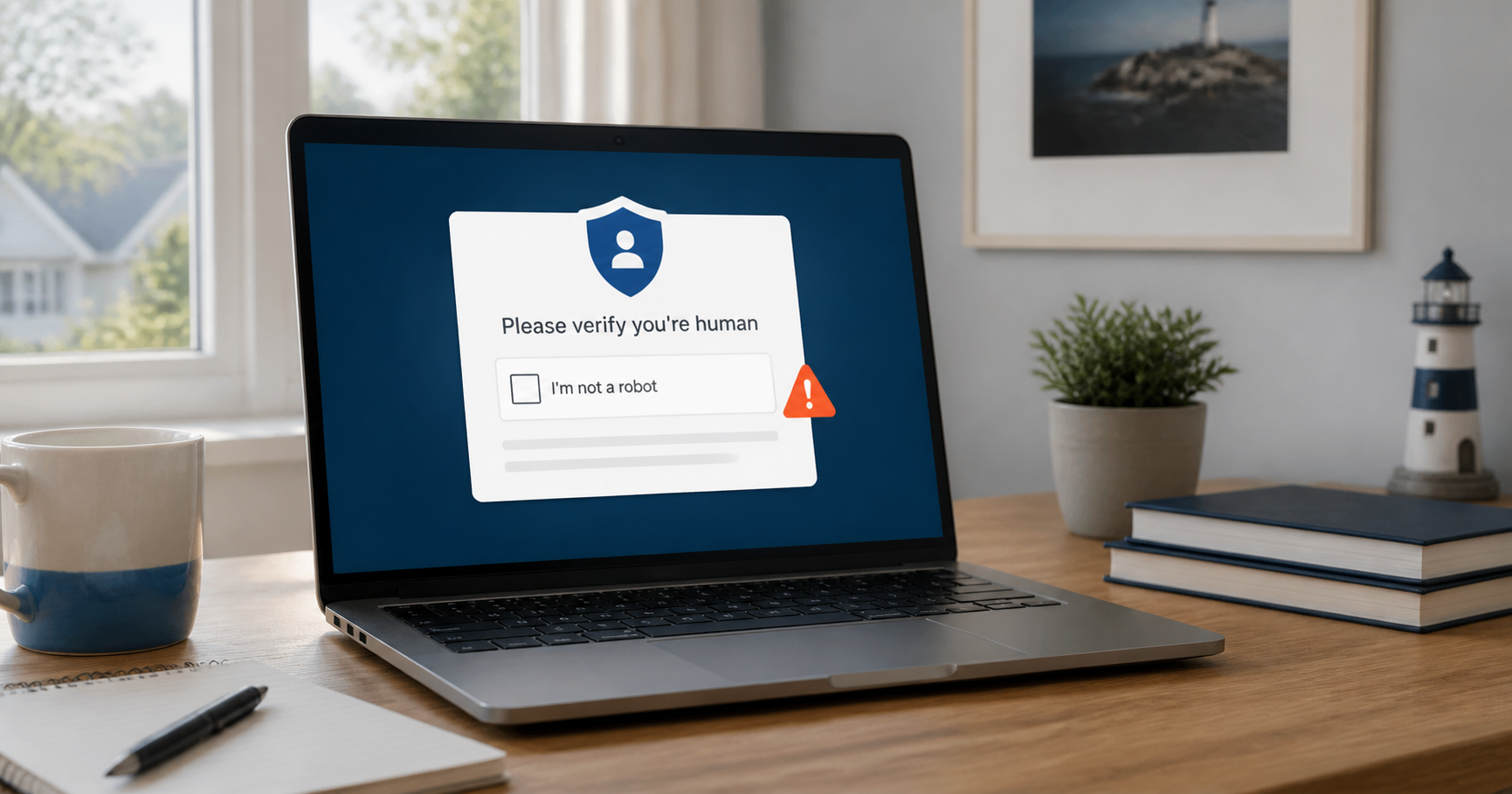
Most of us have completed a CAPTCHA without thinking much about it. You click a box, identify a few traffic lights, or confirm that you are not a robot. It is a familiar part of using the internet.
Scammers are now taking advantage of that familiarity.
The Connecticut Department of Consumer Protection is warning residents about fake CAPTCHA and “human verification” pages that do much more than ask you to click a picture. These pages may tell you to scan a QR code, download a file, open a command window, or use a series of keyboard shortcuts. Following those instructions can install malware or expose passwords and other sensitive information.
The simplest rule is also the most important: a legitimate CAPTCHA will not ask you to run a command or paste code into your computer.
What a Normal CAPTCHA Does
A genuine CAPTCHA is a small challenge used by a website to distinguish a person from an automated program. It normally stays inside the browser and may ask you to:
- Check a box
- Select matching images
- Move a puzzle piece
- Enter a short code shown on the screen
It should not require you to leave the browser, open Windows Run or Terminal, install an extension, download a file, or paste something that the page copied to your clipboard.
If a verification step suddenly becomes a set of computer instructions, stop.
How the Fake Version Works
Security researchers commonly call this technique “ClickFix.” The scam presents a believable technical problem—perhaps a failed CAPTCHA, browser error, missing update, or download problem—and then offers instructions that supposedly fix it.
The attacker is not necessarily exploiting a software vulnerability. Instead, the page tries to persuade the user to run the malicious instructions voluntarily.
Microsoft has documented ClickFix campaigns that lead people to execute commands on Windows and macOS computers. Those commands can retrieve information-stealing malware or remote-access tools. The Connecticut DCP says stolen information may include browser credentials, email logins, account information, and other sensitive data.
You do not need to understand the command to recognize the danger. If a webpage wants you to copy, paste, or run one, do not do it.
Red Flags That a Verification Page Is Fake
It asks for keyboard shortcuts
A prompt that tells you to press several keys, open a Run box, launch PowerShell, or open Terminal is not an ordinary CAPTCHA.
It puts something on your clipboard
Some pages use a button that silently copies a command. The next instruction tells you to paste it. Never paste unknown clipboard contents into a system utility or command window.
It demands a download
A CAPTCHA does not need a program, browser extension, security update, or “verification file” to prove you are human.
It appears on an unfamiliar site
Fake verification pages often appear after someone follows a misleading advertisement, phishing link, or compromised website. A polished design does not make the site trustworthy.
It creates urgency
Messages such as “verification failed,” “your browser has crashed,” or “complete this step immediately” are designed to keep you moving before you question the instructions.
What to Do When You See One
Do not click additional buttons or follow the displayed steps. Close the tab or browser window.
If you were trying to reach a familiar service, open a fresh browser window and type the known address yourself. Do not return through the same advertisement, email link, or pop-up.
If the page appeared after clicking a message at work, use your email system’s report function and notify whoever handles technology for the business. A screenshot can be useful, but do not revisit a suspicious page solely to capture one.
You can also report scams to the Federal Trade Commission at ReportFraud.ftc.gov.
What If You Already Followed the Instructions?
Act promptly, but do not panic.
- Disconnect the computer from the internet. Turn off Wi-Fi or unplug the network cable so a possible infection cannot continue communicating.
- Use another trusted device to change important passwords. Start with email, banking, password-manager, and work accounts. Do not change them from the potentially affected computer.
- Enable multifactor authentication where available. This adds protection if a password was exposed.
- Run a full scan with trusted security software. Keep in mind that some threats may require professional investigation even if a basic scan reports nothing.
- Review financial and account activity. Watch for unfamiliar logins, password-reset messages, or charges.
- Contact your IT provider. A business computer or a device used for sensitive accounts deserves a careful assessment before it returns to normal use.
If banking or payment information may have been exposed, contact the financial institution using a verified number from its official website, statement, or card.
This Is Not Just a Windows Problem
Many people assume that command-based malware only targets Windows. Microsoft reported an active macOS ClickFix campaign in August 2026 that used fake verification and download pages to persuade users to paste a command into Terminal.
Mac users should follow the same rule: a website should not need a Terminal command to verify that you are human, install an ordinary browser update, or unlock a download.
A Familiar Screen Still Deserves a Second Look
Fake CAPTCHA pages work because they imitate something routine. The safest response is to slow down when a simple verification suddenly asks you to make changes outside the browser.
If you encountered a suspicious prompt or followed instructions that may have compromised a computer, Lyme PC Repair can help assess the device and recommend practical next steps. We assist homeowners and businesses across the Connecticut Shoreline with malware concerns, account security, and computer support.
Sources
- “CAPTCHA Scams,” Connecticut Department of Consumer Protection, June 16, 2026. Read source
- “From open lures to cloaked gates: How a macOS ClickFix campaign learned to hide,” Microsoft Security Blog, August 5, 2026. Read source
- “Think before you Click(Fix): Analyzing the ClickFix social engineering technique,” Microsoft Security Blog, August 21, 2025. Read source
- Federal Trade Commission fraud reporting portal. Read source